
Step-by-step guide · 3 minute read
Save your work and return later
Know what is saved at intake, in a preview and in the draft workspace.
For requesters, reviewers
Before you start
Have an intake form or a request you are allowed to edit open. Requesters work on their own requests; reviewers can edit all requests, including the original request details after AI generation. Starting a new intake requires requester access.
Our example is Visitor research workshops, a fictional purchase by Strategy and Insights, estimated at CAD 18,000 and needed by December 18, 2026. It is a training example, not a policy determination.
Save intake answers
- Complete Need and category, Money and options, and Risk and people, then select Check my answers.
- Select Save for later for a new request, or Save answers and update draft when a draft already exists (one paid AI update if answers changed). Wait for the confirmation and the request workspace to open.
- Return through Requests and open the request by title. Expand Request details to inspect the saved answers. Use Edit request details beside Edit draft to revise the original answers, including after AI generation. Save draft edits before leaving the workspace.
Remember: Back navigation keeps answers inside the current intake form. Closing the tab before Save for later can lose that work.
Save draft edits and review decisions
- Select Edit draft to change wording. Make any reviewer-note or finding decisions.
- Preview changes lets you inspect wording. It does not save the changes.
- Select Save changes and wait for the saved confirmation. Downloads and policy checks use the saved revision.
Remember: A review note, suggested correction or finding decision also needs Save changes.
When someone else has edited the request
The app rejects a stale save rather than overwriting a newer revision. Keep a copy of your unsaved wording, reload the request, compare the latest saved version and reapply only the changes still needed. Avoid starting another paid action while resolving the conflict.
Screen example
Requester view · fictional purchase
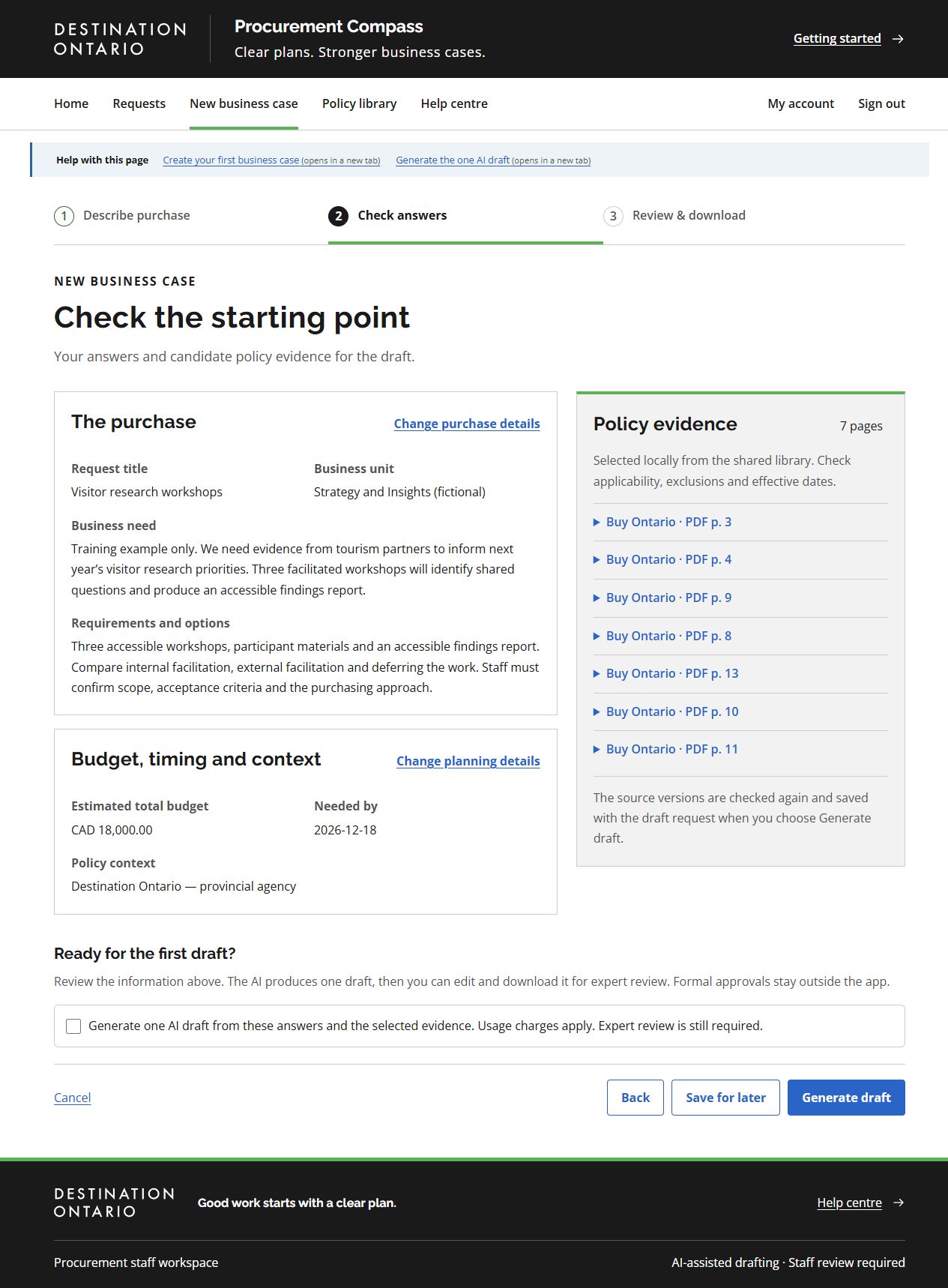
- Expand candidate policy evidence to check source text, scope and effective dates.
- Save for later retains your answers without making an AI call.
- Generate draft requires the explicit charge confirmation above it. It requests the one AI draft; this screenshot was captured without selecting it.
This screenshot was captured using requester access. The default example follows your access for shared tasks; guides for another role show that role’s example. Choosing another example changes only the illustration. Requesters work on their own requests; reviewers can work on all requests but need requester access to create one. Controls also depend on the request’s status. On smaller screens, controls may move below the draft or into the Menu.
What success looks like
The workspace shows a saved revision. Reopening the request shows the answers, draft and review decisions you saved.
Common questions
My preview looked right, but the download has old wording.
Preview changes does not save. Select Save changes, then download again.
Can I change the original answers after drafting?
Yes. Save any draft edits, then select Edit request details. Saving changed answers updates affected passages in the existing draft with one AI call. Usage charges apply; unchanged answers make no AI call. Unrelated wording, review notes, saved evidence and earlier revisions are kept. Review the revised draft. Earlier policy checks are marked outdated. If the update fails, the previous answers and draft are kept together.