
Step-by-step guide · 6 minute read
Review a draft and assess findings
Use evidence, manual notes and explicit decisions to support staff review.
For reviewers, requesters
Before you start
Open the request workspace. Requesters can add manual notes, assess AI findings, edit and download their own drafts. Reviewers can perform these actions on all requests, including editing intake before AI generation. Both installed roles include generation permission for paid drafting and policy checks when AI and evidence are available. Creating a new request also requires requester access.
Our example is Visitor research workshops, a fictional purchase by Strategy and Insights, estimated at CAD 18,000 and needed by December 18, 2026. It is a training example, not a policy determination.
Begin with the draft and sources
- Read the draft and Request details. Check the need, options, amounts, dates and unresolved assumptions.
- Use Saved policy or reference to inspect the evidence supporting a claim. Read the full saved page or excerpt and verify scope and dates.
- Select Add manual note to record a concern. Add a short title, what needs attention and supporting saved sources. Suggested wording and exact quotations are optional.
- Select Add note to review, then Save changes to retain the note.
Optionally run a policy check
- Save draft edits and review decisions first.
- Select Check draft against policies only when you intend to make one paid AI call. It uses the saved draft and its saved evidence; it does not retrieve new library pages.
- Wait for the check to finish. Read each proposed finding and any evidence gaps. “No issues identified” does not establish compliance.
Remember: A new check replaces earlier AI findings in the current view. Earlier findings and decisions remain in revision history; manual notes are kept.
Assess each AI finding
- Needs reviewer assessment means no human decision has been recorded.
- Choose Confirm finding when you accept the concern as valid, Dismiss finding when the concern is incorrect, or Mark addressed after dealing with it.
- Inspect Suggested correction before using it. Applying wording changes the draft; it still needs review and saving.
- Select Save changes to retain both wording and decisions. If the draft or evidence changes, treat the earlier AI check as potentially outdated.
Remember: Confirming a finding accepts the concern. It does not approve the business case. Manual notes have their own Mark addressed manually action.
Screen example
Reviewer view · fictional purchase
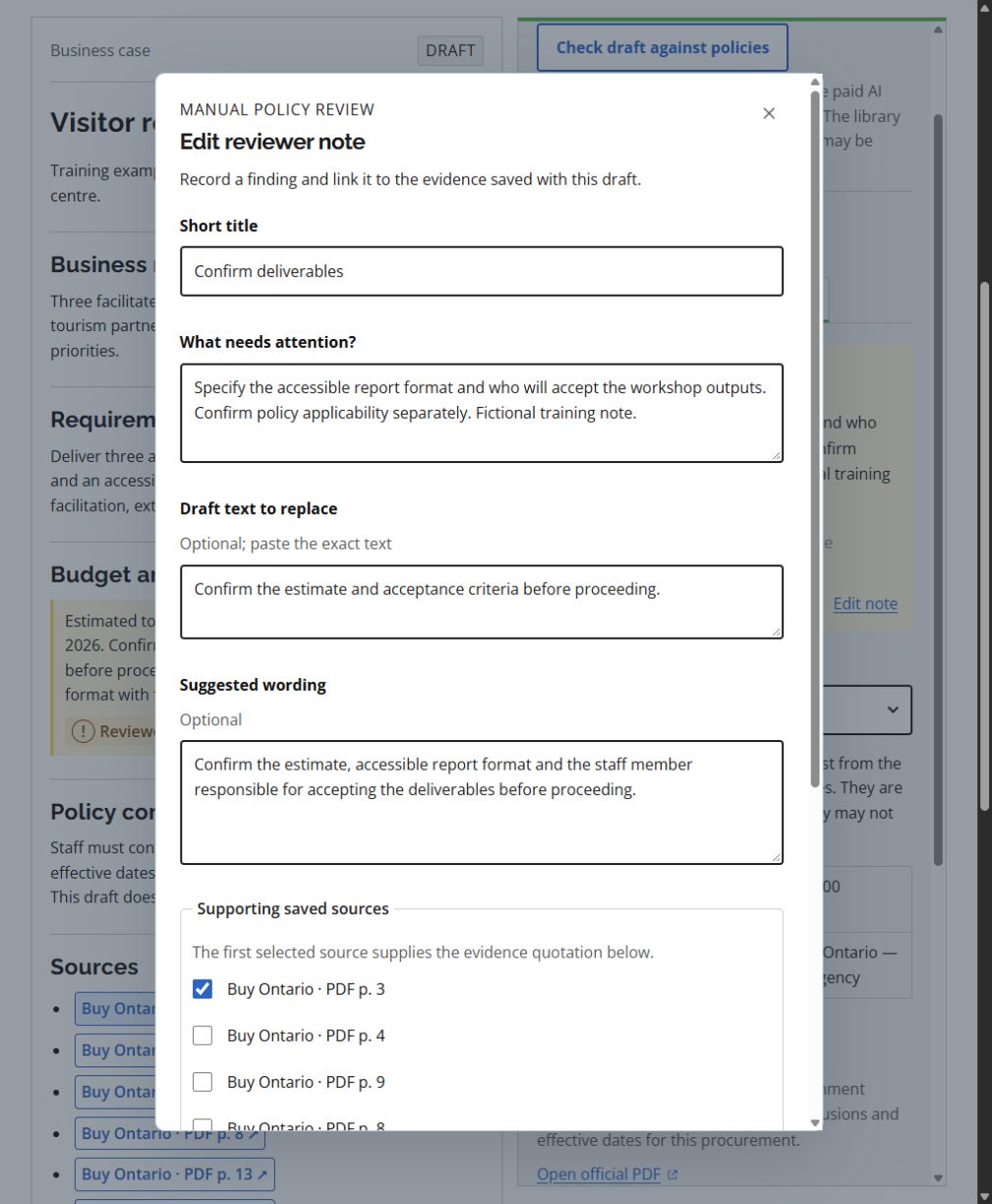
- Give the note a short title and explain the concern under What needs attention?
- Suggested wording is optional. Draft text to replace must match the draft exactly if you want to replace a specific passage.
- Link the note to saved evidence. Below these fields, choose Add note to review or Update note in review, then Save changes in the workspace.
This screenshot was captured using reviewer access. The default example follows your access for shared tasks; guides for another role show that role’s example. Choosing another example changes only the illustration. Requesters work on their own requests; reviewers can work on all requests but need requester access to create one. Controls also depend on the request’s status. On smaller screens, controls may move below the draft or into the Menu.
What success looks like
The saved draft reflects the agreed corrections, and review notes and decisions are retained for your next review step.
Common questions
The check button is unavailable.
Save edits first and check that the request has saved draft text and evidence. Your account also needs generation permission and AI must be configured.
A finding cites the wrong source or misreads a rule.
Inspect the saved text and source scope. Dismiss an incorrect AI finding and record a manual note where useful.