
Step-by-step guide · 6 minute read
Manage the policy library
Upload a source, verify extracted text and control which version is active.
For document administrators, workspace administrators
Before you start
Your account needs Administer shared procurement documents permission. Obtain a source approved for Destination Ontario and its verification URL and dates. This guide uses a fictional workshop brief; it is not a policy source.
Our example is Visitor research workshops, a fictional purchase by Strategy and Insights, estimated at CAD 18,000 and needed by December 18, 2026. It is a training example, not a policy determination.
Upload an inactive version
- Open Administration, then Documents, and select Upload document.
- Enter a stable Document key. Reuse the same key when replacing an existing document; select Upload new version from its document record.
- Choose a searchable PDF or UTF-8 text file, up to 20 MB, 300 pages and 2 MB of extracted text. Scanned PDFs need OCR first.
- Enter the Document title, HTTPS Source document URL, Reference type, Effective date or applicability dates and Retrieved date.
- The organisation context is fixed to Destination Ontario as a provincial agency. Enter the First scope/context page. Select Upload and review text. The new version is inactive.
Review before activation
- Compare extracted pages to the original. Check that tables, numbers, headings and dates are readable and accurate.
- Verify the source details, relevance to Destination Ontario and first scope/context page. Resolve extraction problems before using the document.
- When the version is approved for staff use, select its activation action and read the availability confirmation before submitting.
- For a replacement under the same key, confirm that the intended version is active. Earlier versions remain in history.
Remember: The first scope/context page is prioritised; earlier cover and contents pages are excluded from search.
Retire and replace deliberately
Retire a version when it should no longer be used for new evidence selection. Review the availability confirmation before submitting. Existing requests retain the source versions already saved with them. Replacing a document does not update those requests or their AI policy checks.
Screen example
Administrator view · fictional purchase
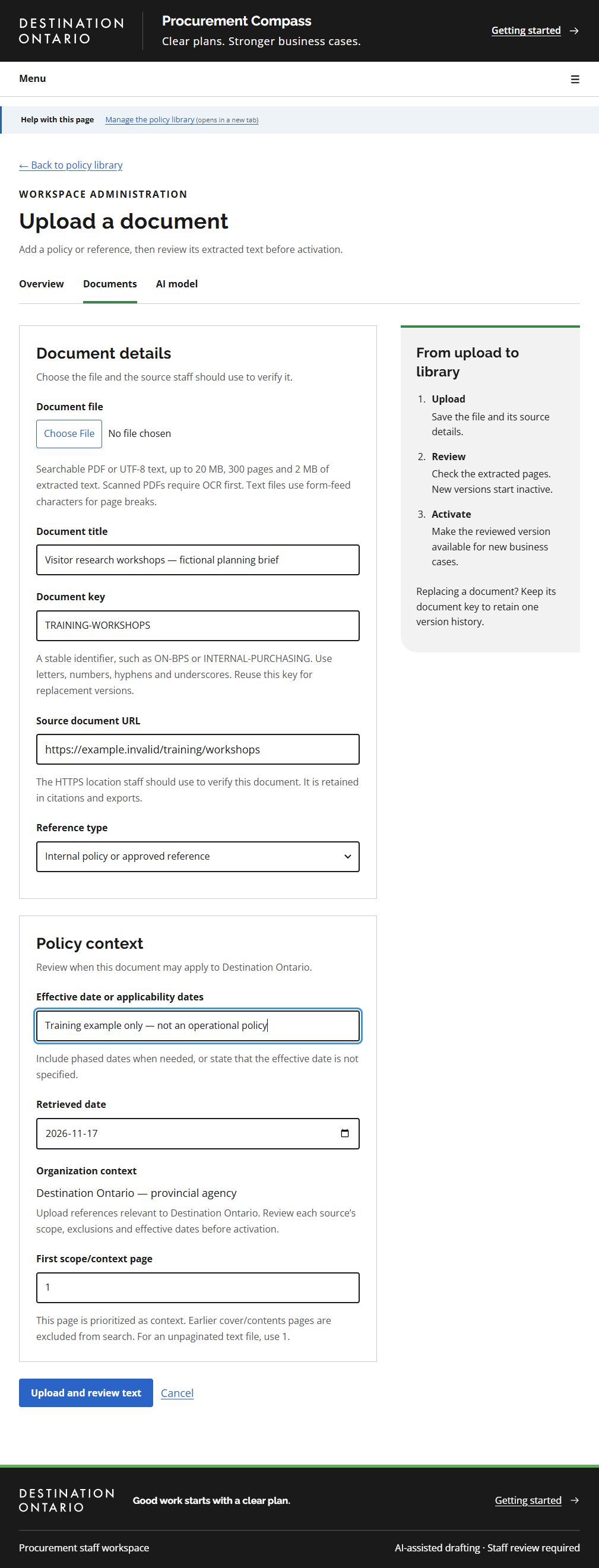
- The Document key groups versions. Reuse it when replacing a document.
- Choose the correct Reference type and supply a genuine HTTPS verification URL for operational documents.
- Record applicability dates and review relevance to Destination Ontario before activation.
- Upload and review text creates an inactive version. Review the extraction before activating it.
This screenshot was captured using administrator access. The default example follows your access for shared tasks; guides for another role show that role’s example. Choosing another example changes only the illustration. Requesters work on their own requests; reviewers can work on all requests but need requester access to create one. Controls also depend on the request’s status. On smaller screens, controls may move below the draft or into the Menu.
What success looks like
The intended approved version appears as active in document administration and is available in Destination Ontario’s policy library.
Common questions
The upload contains no usable text.
Use a searchable source or perform OCR before uploading. Check extraction again before activation.
The file version already exists.
Review the existing version under the same key instead of creating a duplicate. Activate it only after the normal content review.