
Step-by-step guide · 4 minute read
Generate the one AI draft
Check answers and evidence, understand charges and follow drafting status.
For requesters, reviewers
Before you start
AI drafting must be configured, your account must have generation permission, and usable evidence must be available. You can always prepare a manual draft when your edit permissions allow it.
Our example is Visitor research workshops, a fictional purchase by Strategy and Insights, estimated at CAD 18,000 and needed by December 18, 2026. It is a training example, not a policy determination.
Check the starting point
- Open Check my answers from intake, or follow the draft-generation action from a saved request.
- Read the answers and missing details. Expand candidate policy pages and check their scope, exclusions and effective dates.
- Correct the answers before generating. Generation saves the selected evidence with the request; later library updates do not replace that snapshot.
Request drafting explicitly
- Read and select the confirmation that one AI draft will be generated, usage charges apply and expert review is required.
- Select Generate draft once. The source versions are checked again before the request is queued.
- Keep the workspace open to see updated status. The worker normally starts within a minute. When drafting finishes, read the whole draft and check every important claim and citation.
Remember: One initial AI generation is allowed per request. Saving changed original answers can make a paid AI update to affected draft passages. You can keep editing and exporting afterward. A different AI-generated approach needs a new request. If you have reviewer access only, ask a requester to create it or ask your administrator about requester access.
If drafting fails or is interrupted
Read the error shown in the workspace. Retries require an explicit action; there is no automatic paid retry. An interrupted call may have been billed even if no result was saved. Ask the workspace administrator about configuration or access errors before retrying.
Remember: A policy check is a separate paid action. It checks a saved draft against its saved evidence and does not regenerate the draft.
Screen example
Reviewer view · fictional purchase
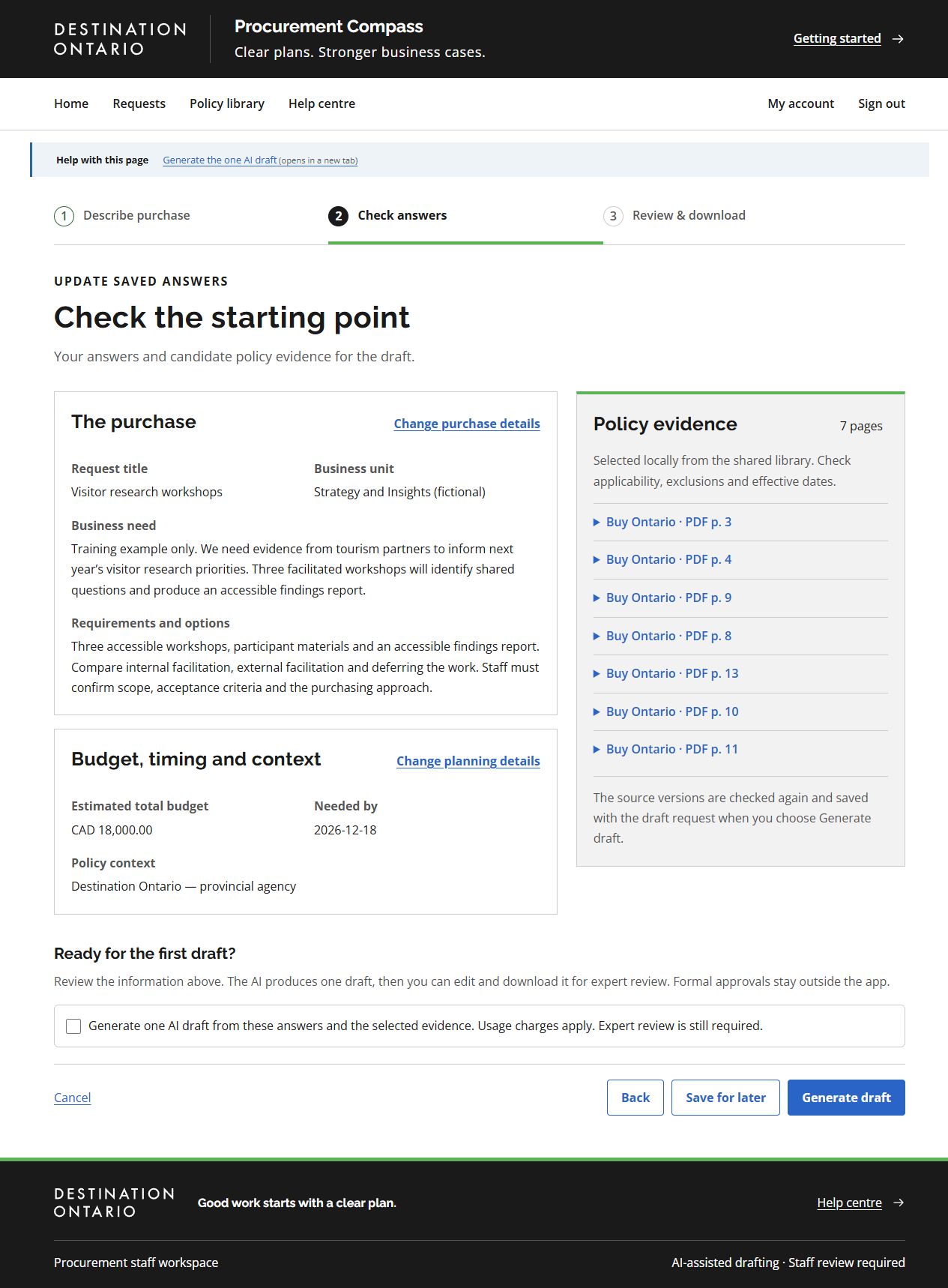
- Expand candidate policy evidence to check source text, scope and effective dates.
- Save for later retains your answers without making an AI call.
- Generate draft requires the explicit charge confirmation above it. It requests the one AI draft; this screenshot was captured without selecting it.
This screenshot was captured using reviewer access. The default example follows your access for shared tasks; guides for another role show that role’s example. Choosing another example changes only the illustration. Requesters work on their own requests; reviewers can work on all requests but need requester access to create one. Controls also depend on the request’s status. On smaller screens, controls may move below the draft or into the Menu.
What success looks like
The draft appears in the request workspace and is available for staff editing and review. AI output remains a draft.
Common questions
Generate draft is unavailable.
Check the explanation on the page: configuration, generation permissions or usable evidence may be needed. Save for later lets you retain answers while this is resolved.
The app says evidence changed.
Return to the answer confirmation, review the refreshed evidence and explicitly confirm generation again if the sources are appropriate.