
Step-by-step guide · 4 minute read
Edit, preview and download a draft
Make the wording yours and export the saved version to Word or PDF.
For requesters, reviewers
Before you start
Open a request you can edit. You can write a manual draft or edit an AI-assisted draft.
Our example is Visitor research workshops, a fictional purchase by Strategy and Insights, estimated at CAD 18,000 and needed by December 18, 2026. It is a training example, not a policy determination.
Edit and preview
- Select Edit draft. Write or revise the text and check amounts, dates, assumptions and source references.
- Select Preview changes to inspect the result. Use Edit draft again to continue editing.
- Select Save changes to retain wording and review decisions. Wait for confirmation before downloading.
Download the saved revision
- Select Download Word for an editable document or Download PDF for a reading copy.
- If prompted to save changes first, save them and then select the download again.
- Open the file and check that it contains your latest saved wording. Downloads include request details, source excerpts and an AI-assisted draft label.
- Finish editing in Word as needed and follow your existing expert review and formal approval process.
Remember: Word edits do not synchronise back into the app. Keep track of which copy your team is reviewing.
Understand the document’s status
Downloading does not approve a purchase or certify compliance. The export uses a proof-of-concept layout, rather than an approved organisational document template. There are no in-app approval or request-changes actions.
Screen example
Administrator view · fictional purchase
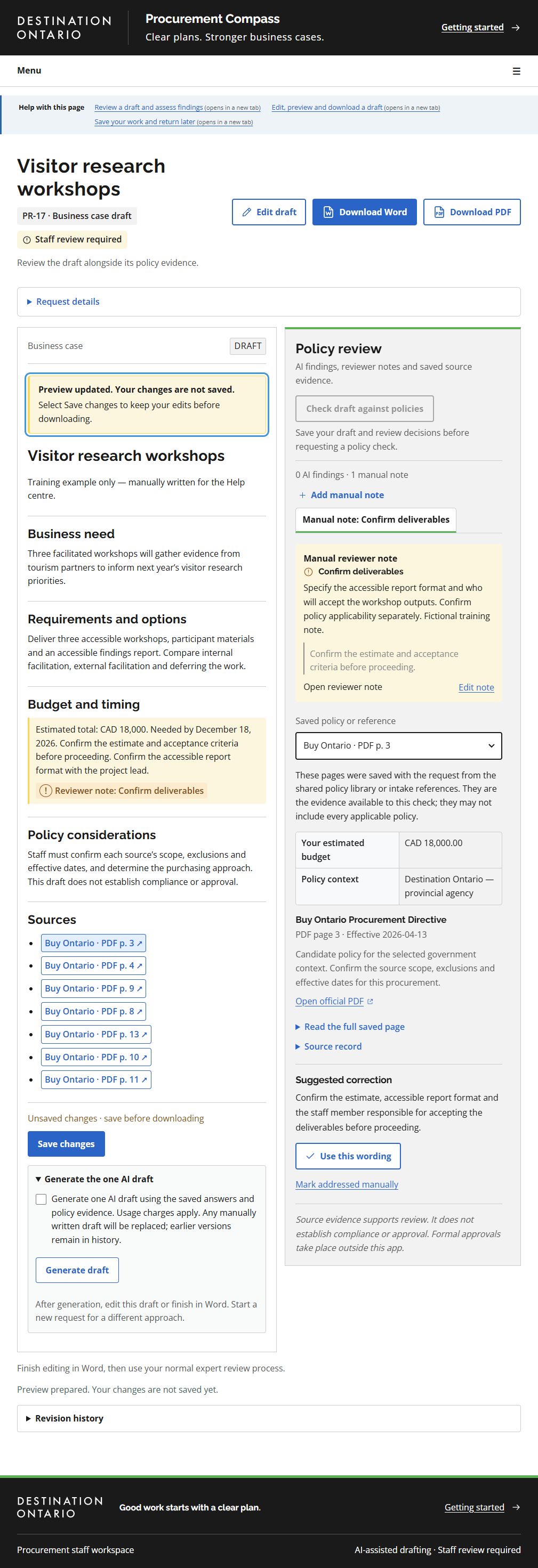
- Edit draft returns to the text editor so you can revise the wording.
- Download Word and Download PDF use the saved revision. Save any changes first.
- The preview notice explicitly says these changes are not saved.
- Select Save changes to retain draft edits and reviewer decisions.
This screenshot was captured using administrator access. The default example follows your access for shared tasks; guides for another role show that role’s example. Choosing another example changes only the illustration. Requesters work on their own requests; reviewers can work on all requests but need requester access to create one. Controls also depend on the request’s status. On smaller screens, controls may move below the draft or into the Menu.
What success looks like
The downloaded Word or PDF contains the latest saved revision and is ready for your normal review process.
Common questions
My downloaded copy is out of date.
Save changes in the workspace and download again. Check that you opened the new file rather than an earlier download.
The draft is temporarily read-only.
Draft generation or a policy check may be running. Follow the displayed status and wait for it to finish before editing.