
Step-by-step guide · 6 minute read
Create your first business case
Turn a purchase idea into clear answers ready for a first draft.
For requesters
Before you start
You need an assigned account with the Procurement requester role. Bring the business need, requirements and options. Budget and timing can remain unknown.
Our example is Visitor research workshops, a fictional purchase by Strategy and Insights, estimated at CAD 18,000 and needed by December 18, 2026. It is a training example, not a policy determination.
1. Describe the purchase
- From Requests, select New business case. Give the purchase a short, recognisable name.
- Explain why the purchase is needed: the problem, who is affected and the outcome you want.
- Choose the purchase category and whether it is new, a renewal or a replacement. Add the current contract number if known. Select Continue to money and options.
Remember: “We need workshops” gives little context. Explain the decision the workshops will support and the result staff need.
2. Add budget, timing and context
- Enter a single total cost or range, including tax for the full duration, currency and number of years. Leave unknown numbers and dates blank for Not known yet. Explain why the date matters and record the funding status and cost centre.
- List the options considered, including doing nothing and any existing tool you know about. A preferred supplier and the reason for that preference are optional. Select Continue to risk and people.
- List the top requirements and whether personal information is involved. Enter the business owner and users as roles or teams, with no names, and the Business unit. Choose or enter Not known yet when an answer is uncertain.
- The organisation context is set to Destination Ontario as a provincial agency. Check each policy’s scope, exclusions and effective dates for the purchase.
- Optionally add up to three approved extra excerpts, with both a reference label and reference text. Confirm their approval for use with the configured AI model. Shared policy evidence does not require pasted excerpts.
- Select Check my answers. Review all six question groups, missing details and candidate policy evidence. Use the Change actions to correct the corresponding answers.
3. Save a starting point
Select Save for later to keep the answers without calling AI. You can return to write a draft manually or explicitly request the one AI draft. Continuing between intake steps preserves answers within the form; it does not create a saved request until you save or generate.
Remember: Before leaving intake, reach Check my answers and select Save for later.
Screen example
Administrator view · fictional purchase
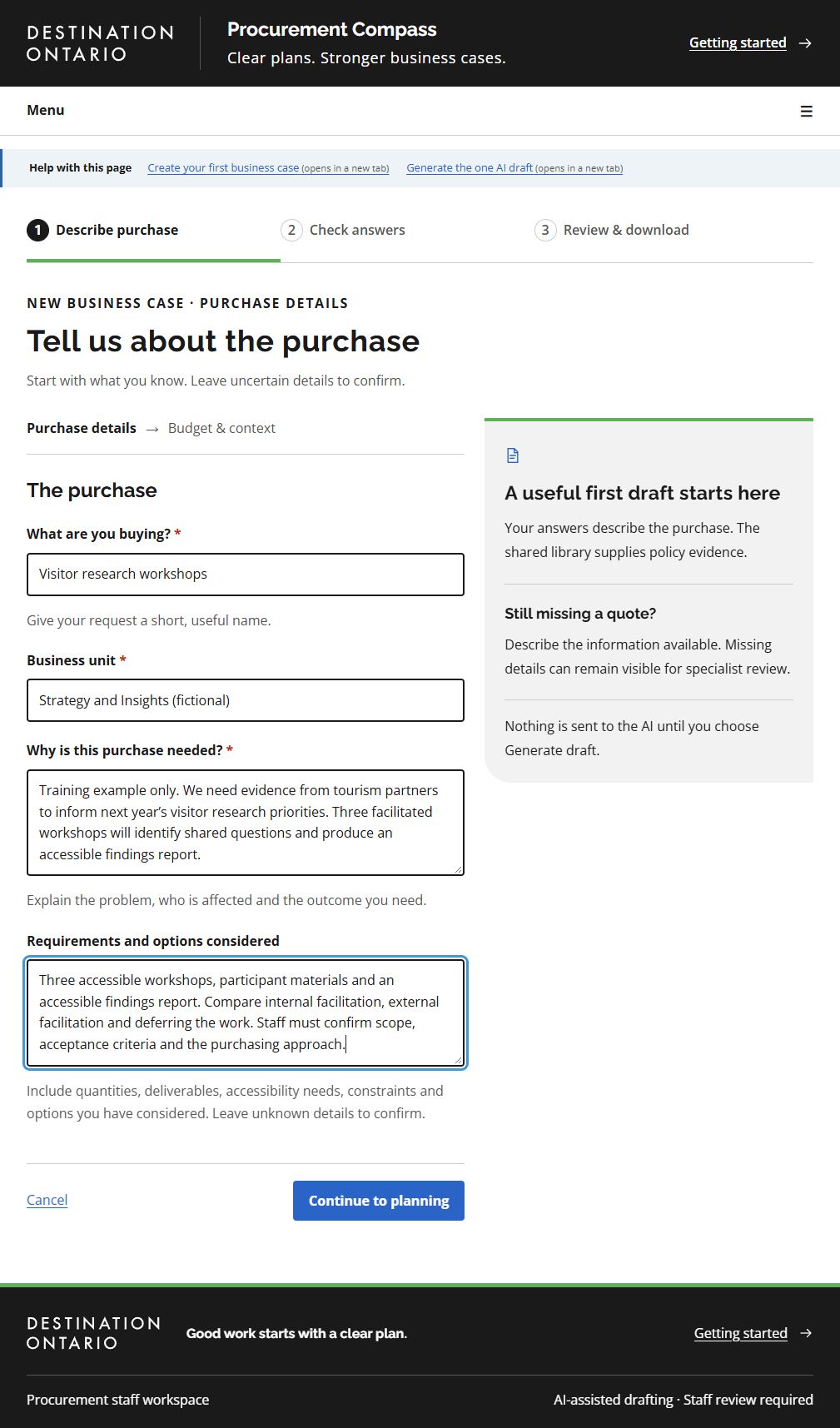
- Use a short, recognisable purchase title so you can find the request later.
- Describe the problem and desired outcome in Why is this purchase needed?
- Continue to planning keeps these answers within the intake form. Reach Check my answers to save the request.
This screenshot was captured using administrator access. The default example follows your access for shared tasks; guides for another role show that role’s example. Choosing another example changes only the illustration. Requesters work on their own requests; reviewers can work on all requests but need requester access to create one. Controls also depend on the request’s status. On smaller screens, controls may move below the draft or into the Menu.
What success looks like
The request workspace opens and the site confirms that your answers were saved.
Common questions
I do not know the budget or date.
Leave these blank and record what needs confirming. Do not enter zero as a substitute for an unknown budget.
I cannot see New business case.
Ask your workspace administrator to check your requester permissions. A reviewer account does not automatically have permission to create requests.