
Step-by-step guide · 4 minute read
Get access and resolve common problems
Find the right permissions and understand when to contact an administrator.
For workspace administrators, requesters, reviewers, document administrators
Before you start
Use your assigned workspace account. Have the request title or number and the exact problem ready when asking for support. Do not send passwords or AI credentials.
Our example is Visitor research workshops, a fictional purchase by Strategy and Insights, estimated at CAD 18,000 and needed by December 18, 2026. It is a training example, not a policy determination.
Sign in and recover access
- Select Sign in and use your assigned username and password.
- If you have forgotten your password, select Forgot your password? and follow the recovery instructions. If no recovery email arrives, contact your workspace administrator.
- If you need an account or can sign in but cannot open the workspace, contact your administrator and explain which tasks you need to perform.
Remember: Help guides use fictional examples and can be read before sign-in. Reading an administrator guide does not grant administrator permissions.
Match access to the work
- Procurement requester: create, view and edit your own requests; add manual notes and assess AI findings; generate drafts, run policy checks and download saved drafts when available. Other people’s requests and administration are not included.
- Procurement reviewer: view and edit all requests, including the original request details after AI generation; add notes and assess findings; generate drafts, run policy checks and download saved drafts. Creating new requests and administration are not included. Add requester access when the person also submits new requests.
- Document administrator: upload, review, activate and retire shared document versions using Administer shared procurement documents permission. This is a permission-based responsibility, not one of the two installed procurement roles.
- Administrator: the installed full Administrator role includes requester, reviewer, document, AI model and account administration. People is Drupal’s account-management area. For restricted administrators, account management, role assignment, AI model settings and document administration need their respective permissions.
When AI actions are unavailable
Check the explanation beside the action. The app may need saved draft text, saved evidence, generation permission or configured AI access. Administrators with AI permission can open Administration → AI administration. Drafting, answer updates and policy review have separate model profiles. Save a profile draft, validate its format, then activate it for new calls. Activity & logs shows new attempts, usage and sanitized failure codes. Connection tests are explicit paid actions; saving and activation do not call a model. Infrastructure credentials stay outside the staff workflow; never paste them into a business case or help request.
Give support enough detail
Tell your workspace administrator the request number, what you selected, what you expected, the exact error and when it happened. A screenshot of the relevant error can help; remove sensitive information. For policy interpretation, ask the responsible procurement specialist. For a stale save, preserve your wording and reopen the latest revision.
Screen example
Reviewer view · fictional purchase
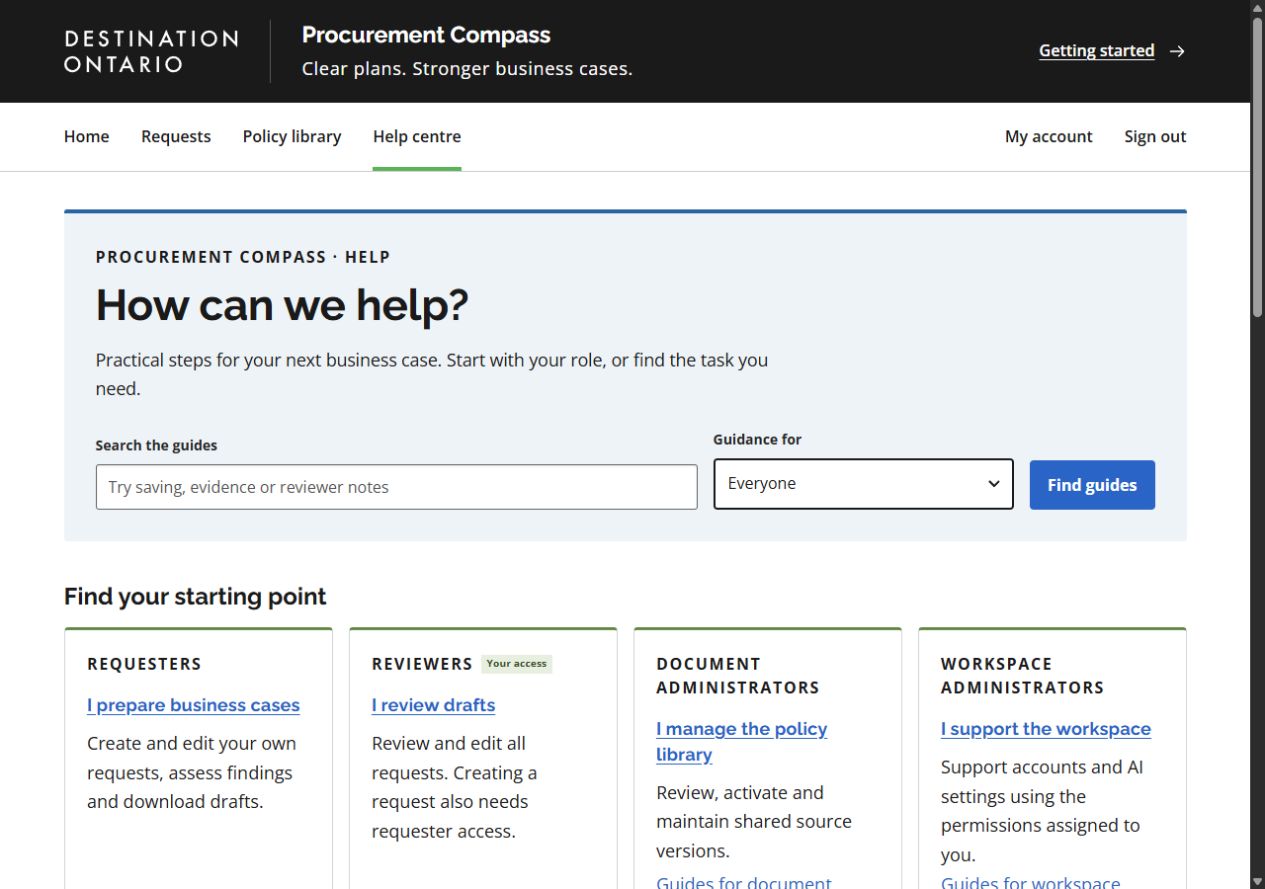
- Search for the task or problem, such as saving, evidence or reviewer notes.
- Guidance for filters the guides by audience. Everyone shows all eight.
- Role starting points lead to a recommended first guide. Your access identifies audiences matching your current permissions.
This screenshot was captured using reviewer access. The default example follows your access for shared tasks; guides for another role show that role’s example. Choosing another example changes only the illustration. Requesters work on their own requests; reviewers can work on all requests but need requester access to create one. Controls also depend on the request’s status. On smaller screens, controls may move below the draft or into the Menu.
What success looks like
You can perform the tasks your role requires, or your administrator has the details needed to resolve the access or configuration issue.
Common questions
A request link says access denied.
Check that you are signed in with the correct account. A requester normally sees only their own requests; ask the administrator about reviewer access when cross-request work is required.
Generation failed. Should I keep retrying?
Read the error and resolve the cause first. There are no automatic paid retries, and an interrupted call may already have incurred charges.